Activity
The Activity panel shows a quick snapshot of your recent work across the platform — including conversations, agents, and files — all in one place.
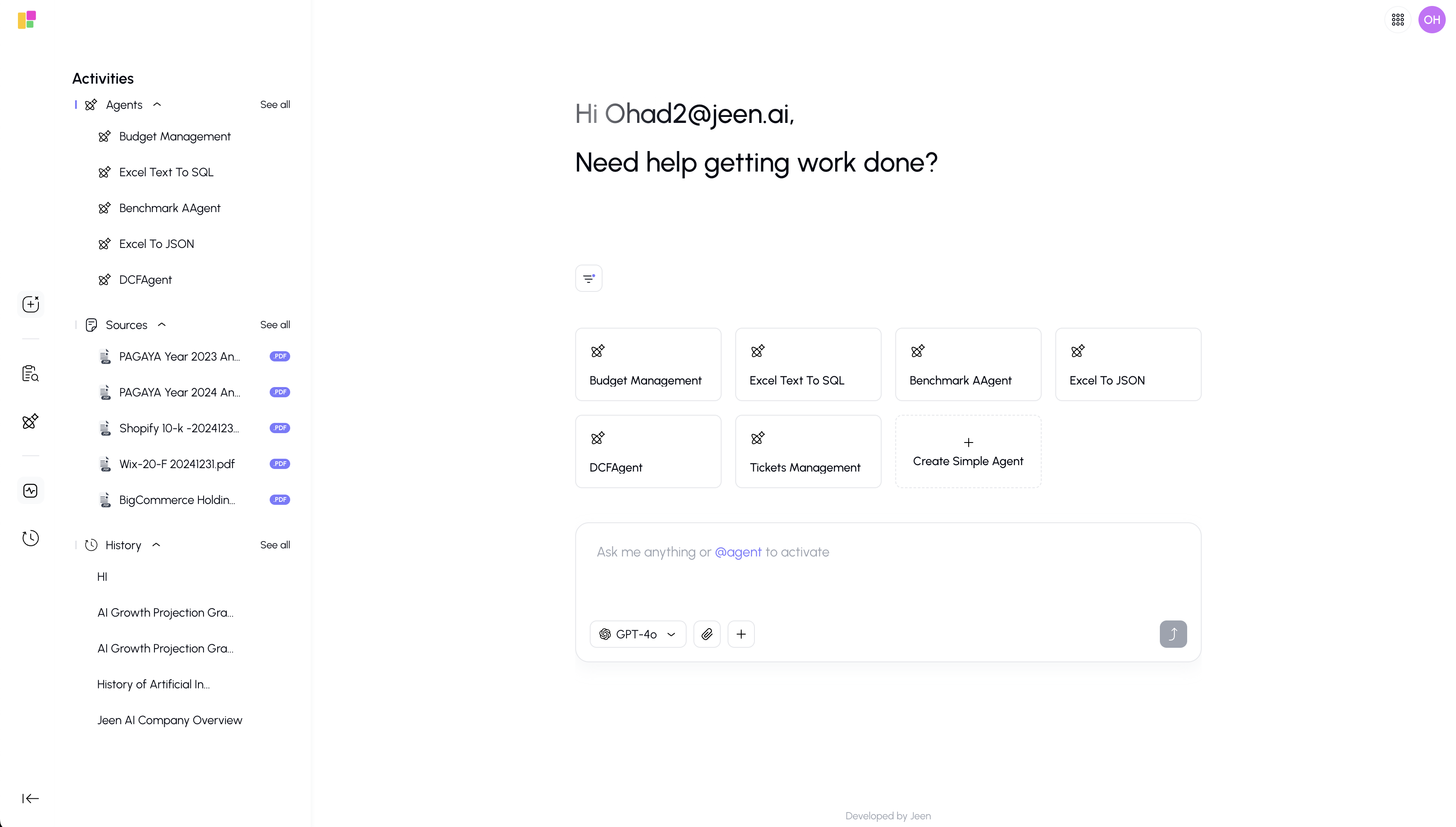
Opening the Activity Panel
Click the Activity icon in the bottom section of the sidebar. A panel will slide open from the left, showing your recent activity without leaving your current page.
Click the icon again to close the panel.
What's Inside
The Activity panel is divided into three collapsible sections:
1. Recent Conversations (History)
Shows your most recent chat conversations. Each item displays the conversation title and a brief preview.
- Click a conversation to open it.
- Remove an item from the list using the remove button.
- If you have no recent conversations, you'll see a "Start Chat" button to begin one.
- Click "See All" to open the full History panel.
2. Recent Agents
Shows agents you've recently interacted with.
- Click an agent to start a new conversation with it.
- Remove an agent from the recent list.
- If you haven't used any agents yet, you'll see a "Build an Agent" button.
- Click "See All" to go to the full Agents page.
3. Recent Sources (Files)
Shows files and documents you've recently accessed.
- Click a file to preview or open it.
- Remove a file from the recent list.
- If you haven't accessed any files, you'll see an "Upload File" button.
- Click "See All" to go to the full Knowledge page.
Tips
- The Activity panel is great for quickly picking up where you left off.
- It doesn't replace the full History, Agents, or Knowledge pages — it's a convenient shortcut showing your most recent items.
- Items you remove from the Activity panel are not deleted — they just disappear from this quick-access list.