Outlook
The Outlook integration connects your Microsoft Outlook account to the Jeen AI Platform, allowing the AI to interact with your email and calendar. This is powered by the platform's connector system.
What You Can Do with Outlook
- Set up a meetings
- Send emails
Connecting Your Outlook Account
Before using the Outlook integration, you need to connect your account:
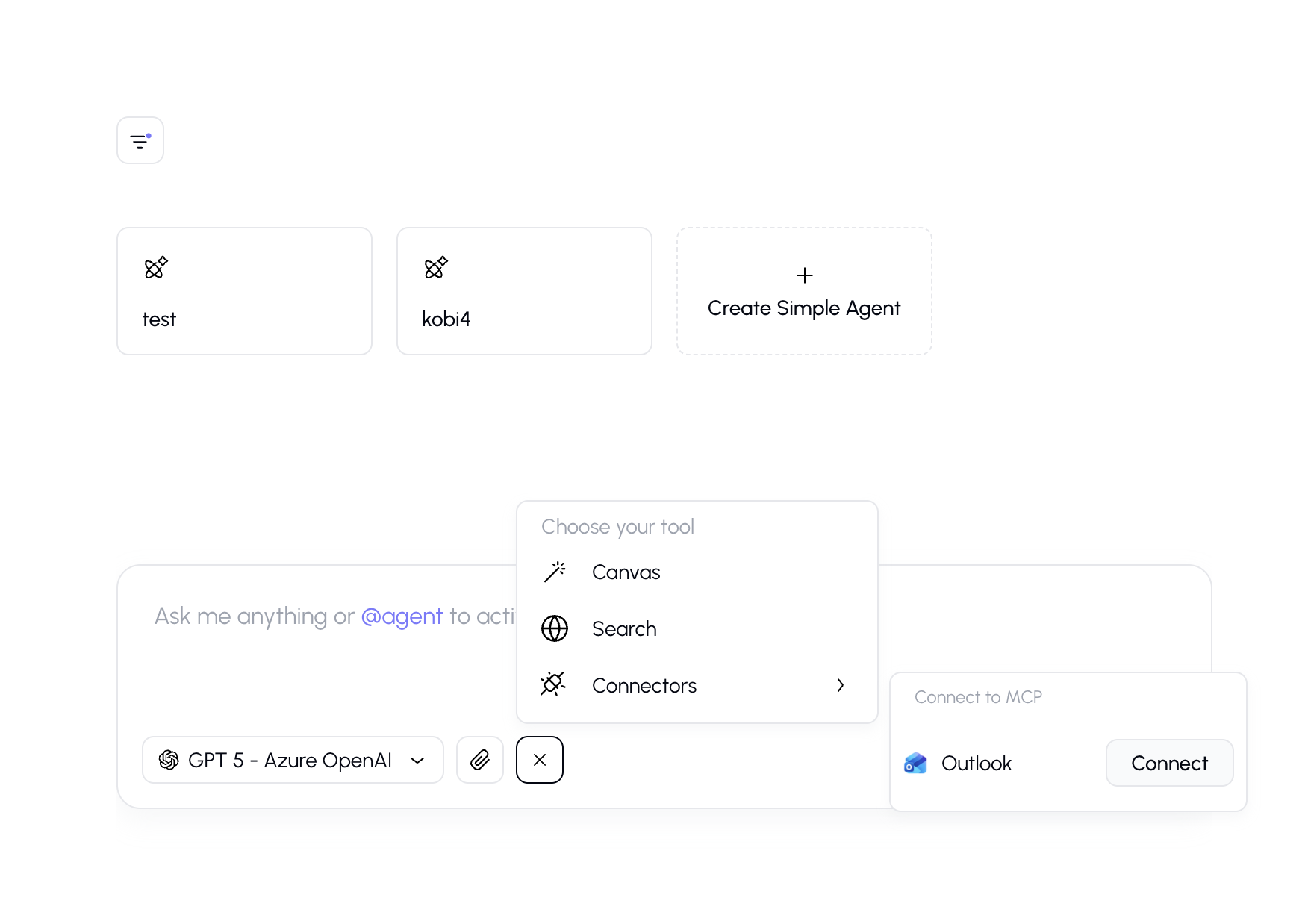
- Open the tools menu by clicking the "+" button in the chat input bar.
- Look for Connectors in the tools list.
- Find Outlook in the connectors submenu.
- Click the Connect button.
- A sign-in window will appear — log in with your Microsoft account.
- Authorize the platform to access your Outlook data.
- Once connected, a toggle switch will appear next to Outlook showing it's active.
Using Outlook in Chat
After connecting, you can activate the Outlook connector for your conversation:
- Open the tools menu → Connectors.
- Toggle Outlook to the on position.
- Type your request — for example:
- "send an email to jeen@jeen.ai"
- "set up a meeting with John about the project deadline"
Connection Status
Your Outlook connection status is saved and persists between sessions:
| Status | What It Means |
|---|---|
| Not connected | You haven't linked your Outlook account yet. Click "Connect" to set up. |
| Connected (toggle off) | Your account is linked but not active for the current conversation. Toggle on to use. |
| Connected (toggle on) | Outlook is active and the AI can access your email/calendar for this conversation. |
Privacy and Security
- The Outlook connector only accesses your data when the toggle is on and you're actively using it in a conversation.
- Your Outlook credentials are handled securely through Microsoft's OAuth system — the platform never sees your password.
- You can disconnect your account at any time from the connectors menu.